

Overview
To give players more flexibility and options for account linking, Discord can show prompts and buttons throughout the Discord client that encourage users to link their accounts with your game. These are called entry points for account linking. These entry points are additive: they work alongside any account linking you already support from your game on desktop, mobile, or console. Enabling them doesn’t replace or change how players link from within your game — it just gives Discord a way to prompt players to link even when they aren’t already in your game. Higher account linking rates lead to better social features, improved engagement, and a stronger connection between your game and Discord users. This guide shows you how to enable Discord to display these account linking prompts to your players.Prerequisites
Before enabling these entry points, you must have:- Discord application setup
- Created a Discord application in the Developer Portal
- Configured OAuth2 settings with appropriate redirect URLs
- Implemented account linking in your game
- Discord Social SDK downloaded and integrated into your game
- SDK initialization working (can connect to Discord)
- Basic account linking flow already implemented in your game
- Development environment ready
- Game can successfully authenticate users with Discord OAuth2
These prerequisites are for the connected game flow below, which uses the Discord Social SDK. If you only want to support the web flow, you don’t need the SDK at all — see Account Linking on Web for its own prerequisites.
Entry Points & Account Linking Flows
What are Entry Points?
Entry points are buttons, prompts, and UI elements that Discord shows throughout the Discord client to encourage account linking. Think of them as “Link your account” buttons that appear in various places where users might see your game.Example of an Entry Point
Discord automatically chooses which entry points to show based on what features you’ve implemented and whether your game is currently running. Some of the current Discord entry points include:
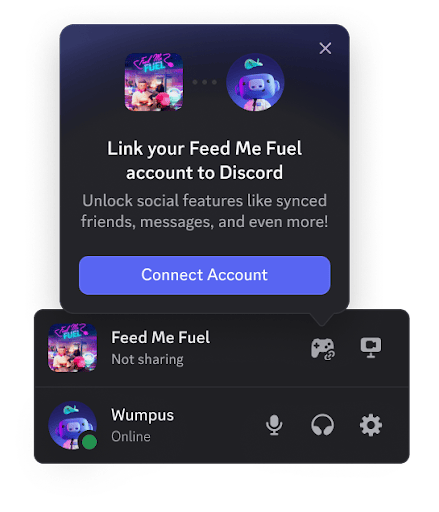
Game Detection
Discord detects the player is playing your game and provides an entry point to link if they haven’t already.
Some of the current Discord entry points include:
Game Detection
Discord detects the player is playing your game and provides an entry point to link if they haven’t already.
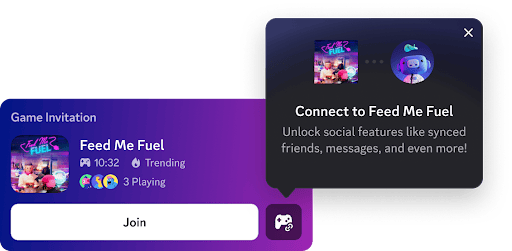
 Game Invites
Players are optionally able to link when receiving an invite for your game, which helps them get set up and playing with their friends faster.
Game Invites
Players are optionally able to link when receiving an invite for your game, which helps them get set up and playing with their friends faster.
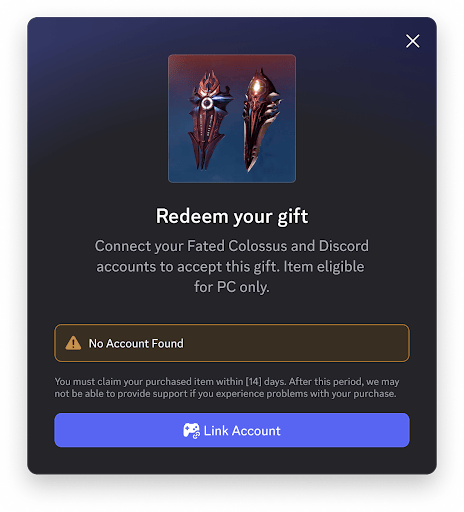
 Claiming Game Shop Items
Players need to account link when redeeming items from your Game Shop to be able to receive their in-game rewards.
Claiming Game Shop Items
Players need to account link when redeeming items from your Game Shop to be able to receive their in-game rewards.
Account Linking Flows
At this time, Discord provides two different flows for account linking from the client: the connected game flow and the web flow. These are additive, not exclusive — you can implement one or both, and neither requires the other. Offering both gives players the most reliable way to link no matter how they reach the entry point. When a player clicks one of the entry points within their Discord client, Discord automatically picks which flow to send them through, in this priority order:- Connected game flow — used if your game is detected as currently running and has registered
Client::RegisterAuthorizeRequestCallback - Web flow — used as a fallback whenever the connected game flow isn’t available (for example, your game isn’t running, or you haven’t implemented it), as long as your Connection Entrypoint URL is configured in the Developer Portal
Connected Game Flow
This is our preferred account linking flow as we think it provides the best user experience when it’s available. The connected game flow will send the user into your game client to begin the account linking flow. When it isn’t available — your game isn’t running, or you haven’t implemented it — Discord falls back to the web flow if you’ve configured one.Prerequisites
- Upgrade to SDK version 1.6 or higher
- Implement account linking in your game
Implementing the Connected Game Flow
Once you have adopted SDK version 1.6 or higher, there will be two new methods on the Client object,Client::RegisterAuthorizeRequestCallback and Client::RemoveAuthorizeRequestCallback. These two new methods will allow you to enable and disable this flow while your game is running.
Calling Client::RegisterAuthorizeRequestCallback with a callback function will signal to the Discord client that your game is running and able to start the account linking process. You should run this as soon as your game is able to handle an account link, for instance just after your user has logged in or reached the main menu.
When a user clicks one of the account linking entry points in their Discord client, the SDK will run your callback. Treat this as if the user had just clicked one of your in-game account linking buttons and begin the authorization flow right away.
When your game receives this callback, the user is most likely focused on the
Discord client, not the game client. Make sure to pull focus or otherwise
alert the user that something is happening in the game. The Discord client
will notify them to check the game as well. For a more seamless
experience, you should pull them back into the game.
Client::RemoveAuthorizeRequestCallback will signal to the Discord client that your game is no longer able to start the account linking process. Call this whenever your game client is entering a state where starting the account linking process wouldn’t work, for instance if the player enters a match, logs out, or is in some other full screen flow like a cutscene.
This is all you need to enable the connected game flow, you can test and debug this flow using our new built-in developer tools in the Discord client.
Connected Game Best Practices
When a user clicks the account link button in their Discord client, this is a high intent action. We recommend skipping any extra upsells you have until after the user has linked their account, as any extra steps added to this linking flow increases the areas where users may drop off. Show them any upsells after they’ve linked to reaffirm all the new features and any rewards they may have unlocked by linking their account. Ensure you’re enabling and disabling the callback at the appropriate times. If a user clicks an entry point in their Discord client and it launches the account linking flow in the middle of a match, this can interrupt gameplay and pull them out of your intended experience. Don’t worry about checking if the user is already linked, the Discord client will handle hiding the entry point for users that have already linked their accounts. This will keep your implementation simpler and reduce surface for issues.Web Flow
The web flow is Discord’s fallback for entry points: whenever the connected game flow isn’t available for a player — the game isn’t running, or you haven’t implementedClient::RegisterAuthorizeRequestCallback — Discord sends them to a webpage to begin the account linking process instead. It’s additive to the connected game flow, not a replacement for it, and it doesn’t require the Discord Social SDK at all.
To enable it, implement the standard OAuth2 flow on your website, then configure your Connection Entrypoint URL in the Developer Portal so Discord knows where to send players from client entry points.
For the full implementation guide — configuring your redirect URI, handling the OAuth2 callback, exchanging tokens, and setting your Connection Entrypoint URL — see Account Linking on Web.
Requirements for Entry Points
Because this webpage can be reached from a Discord entry point while your game is installed (and possibly running), it needs to handle a few cases that a standalone web account linking flow doesn’t:- If the user isn’t signed in to their game account, prompt them to sign in and then take them immediately back to the authorization flow.
- Request the same scopes you request in your game, so linking behaves identically regardless of which flow the player used.
- After authorization completes, save the token to the user’s account the same way you would during in-game authorization, so it’s ready the next time they launch your game.
- If the user is currently in game, send an update to their client with the token and call
Client::UpdateTokento sign them in right away without needing to restart their game.
Next Steps
Now that you’ve successfully implemented account linking with Discord, you can integrate more social features into your game.Design: Signing In
Design guidelines for account linking and user authentication
Creating a Unified Friends List
Combine Discord and game friends into a single list for easy management.
Setting Rich Presence
Display game status and information to Discord friends.
#social-sdk-dev-help channel for support from the community.
If you encounter a bug while working with the Social SDK, please report it here: https://dis.gd/social-sdk-bug-report